Skip to content
BloomBoard

Changelog

What’s new in BloomBoard.

What ships in BloomBoard, in plain florist language, updated as it ships. These are the same updates we send florists in the “From the studio” email. Newest first.

New here? Everything below is switched on during the 14-day free trial.

  1. From the studio · No. 005

    Your clients can now pay you online by card.

    Online payments are on for every account. Your clients can pay an invoice by card from the page you already send them — through Yoco in South Africa and Stripe everywhere else. Invoices also got the same send screen proposals have, and you can call the occasions on your enquiry form whatever you like.

    01Get paid from the invoice page

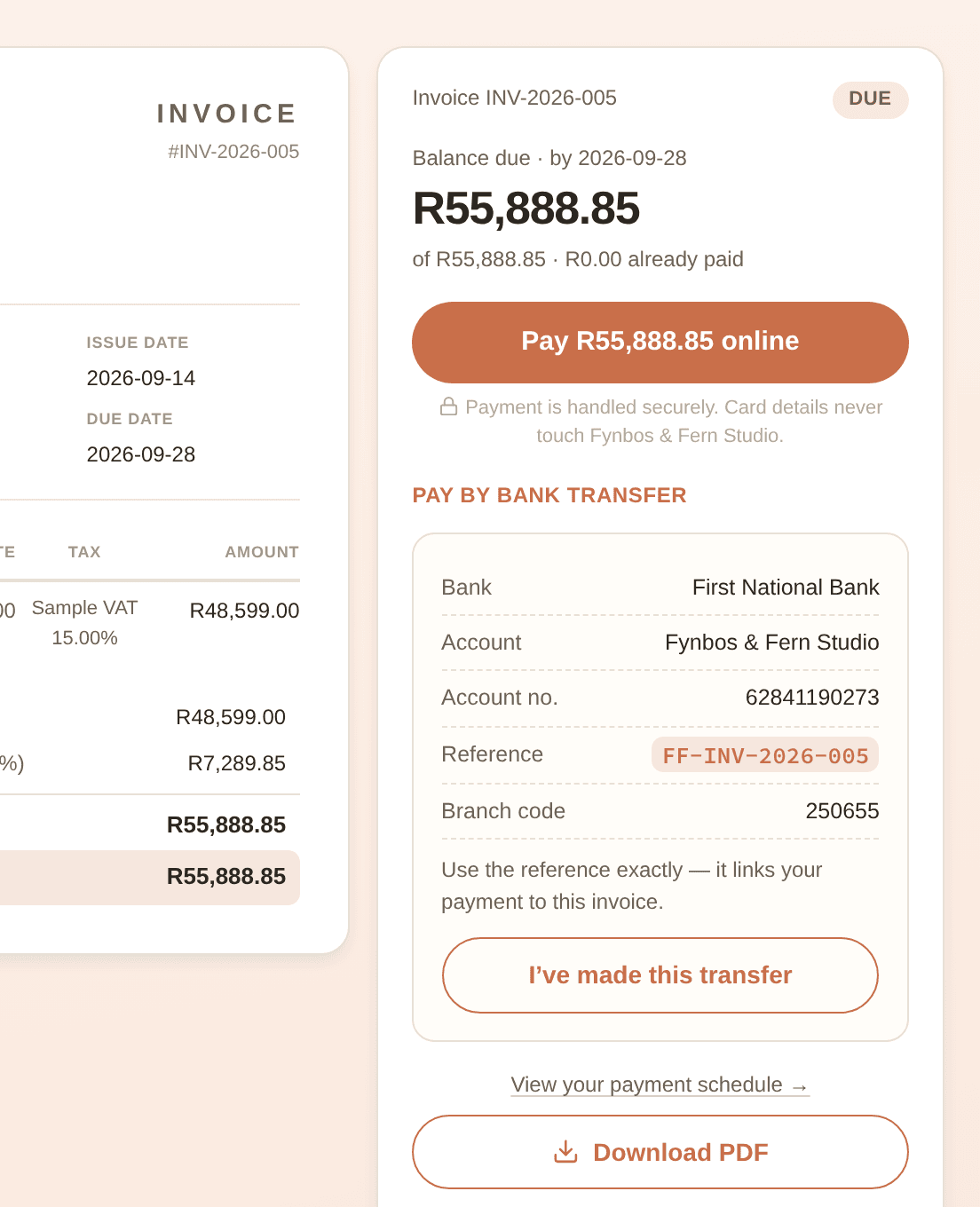
    A client's payment page: the balance due, a Pay online button, and a bank transfer panel with click-to-copy bank details and a payment reference, beside the invoice

    Every invoice already has its own private page; it can now take the money. Under Settings → Client payments, connect your card provider (about ten minutes with the guide) and add your bank details. Your client sees a Pay online button and a bank-transfer panel with click-to-copy details and a reference tied to the invoice. Card payments land on the invoice by themselves, marked Paid online — you get a Payment received email, the client gets a receipt, and a bank transfer they mark as made waits under Transfers awaiting confirmation until you confirm it. BloomBoard takes no fee; you pay only your provider’s processing fee, and you can pass that on to card payers. Online payments are new and in beta.

    02Send an invoice the way you send a proposal

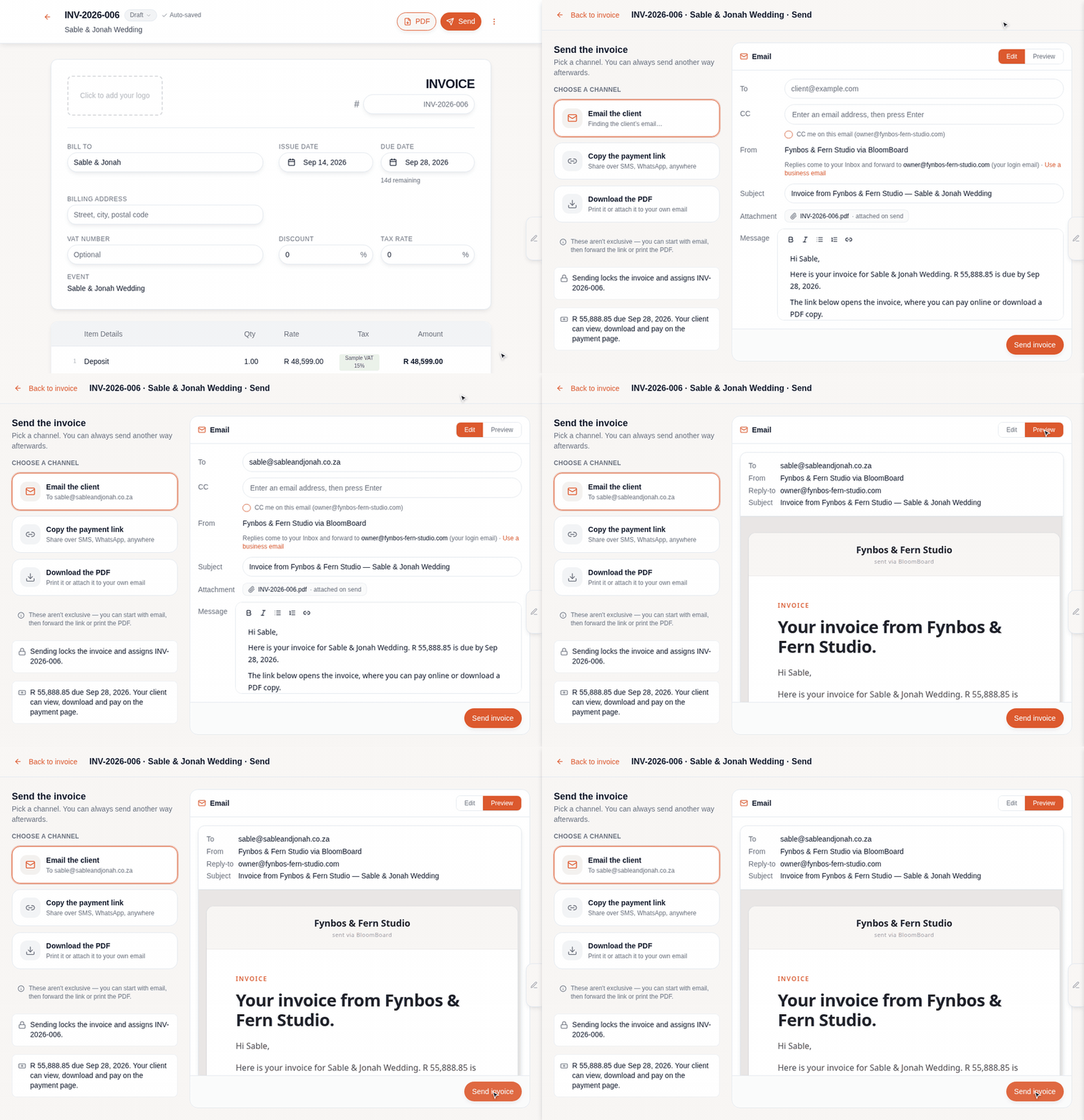
    Choosing Send on a draft invoice opens the send screen: channels on the left, the email on the right with the client's address, subject and message filled in, then Preview showing the exact email with the PDF attached and a Send invoice button

    One Send button opens the same screen proposals use. Email the client with the address, subject and message filled in and the PDF attached; copy the payment link, which comes with a QR code; or download the PDF. Sending locks the invoice and gives it its number. The PDF a client downloads is now the same document they saw on the page, in the same layout.

    03Call the occasions on your enquiry form your wayStudio plan

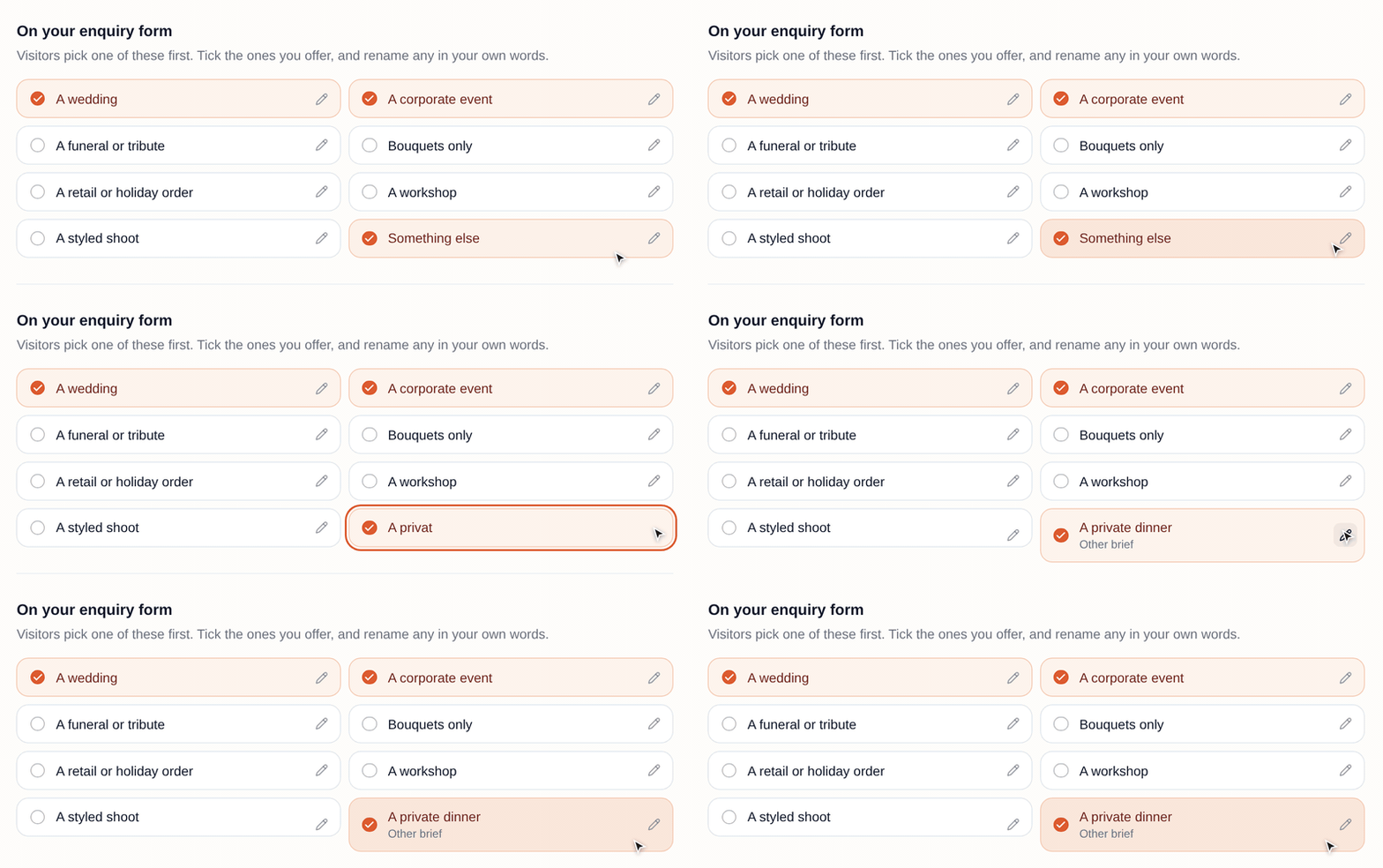
    The On your enquiry form tiles in Settings: the pencil on Something else is clicked, A private dinner is typed in, and the tile now reads A private dinner with Other brief underneath

    The options a visitor picks from on your enquiry link used to be BloomBoard’s words. Under Settings → Client brief → On your enquiry form, rename any of them — “Something else” can become “A private dinner”. The option still opens the same brief.

    Also new

    • Proposal expiry is no longer 14, 30 or 60 days only — pick Custom under Settings → Proposals and type your own number of days.
    • Settings now sit inside the app with the rail on the left, and pressing / searches every setting.
    • Venue search looks near your business address first.
    • On the proposal board, every number you can edit carries a faint dashed underline.
    • Sign in with Google and your Google photo becomes your avatar, unless you have uploaded one.
    • Library items open in a wider two-pane drawer — the item on the left, its variants on the right.
    • If the signed copy of a proposal cannot be emailed, you get a notification and a line in the event’s Activity.
  2. From the studio · No. 004

    Change what your brief asks. Save the lines you always add.

    Two things a lot of you asked for: you can now change what the client brief asks, and you can save the services and costs you put on every quote. There’s also a new way to send your team their week-of plan.

    01Change what your brief asksStudio plan

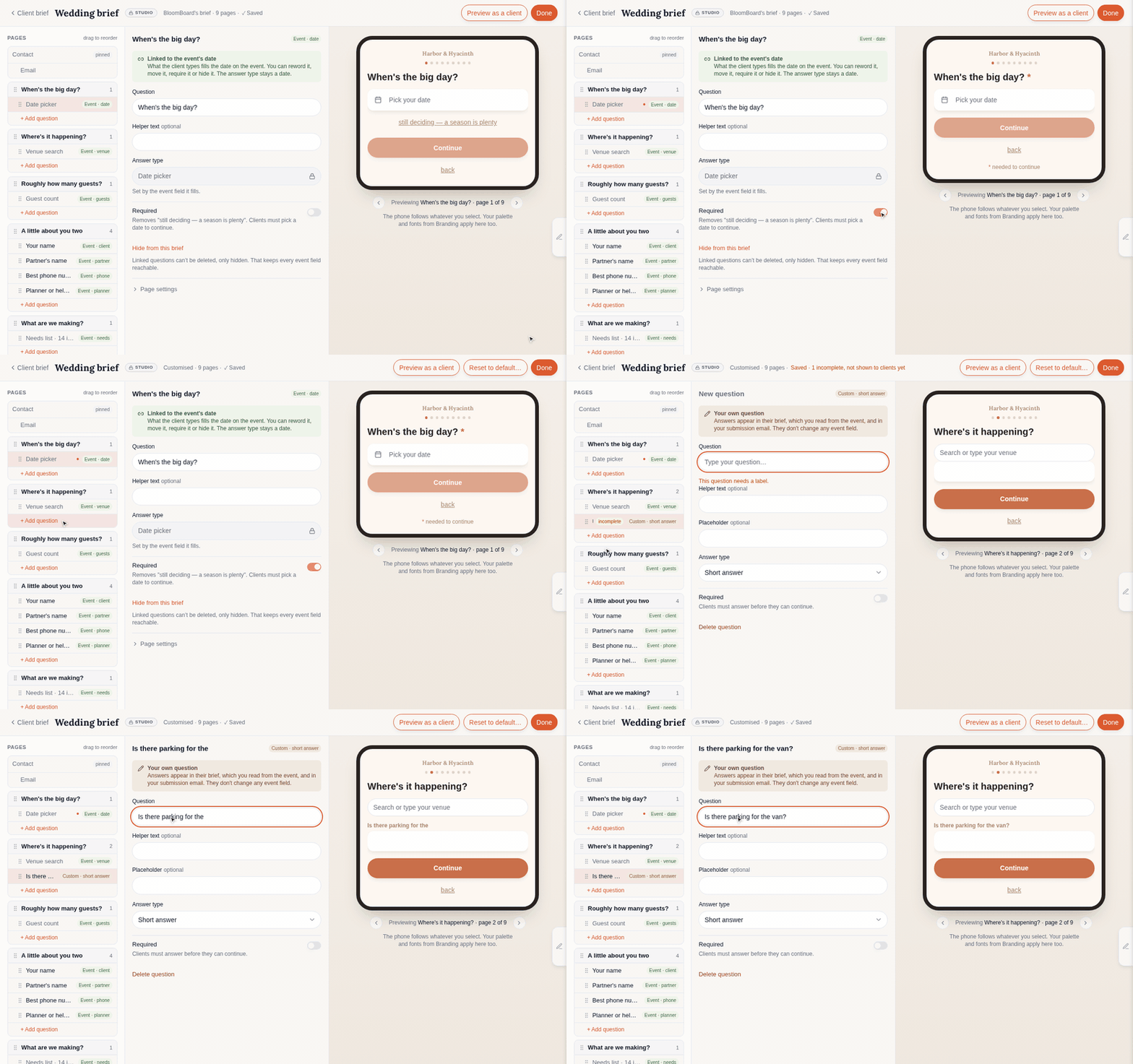
    The brief editor: pages and questions on the left, a question of your own set to Required in the middle, and a phone preview of the client's screen on the right

    The brief your clients fill in is now yours to edit, under Settings → Client brief. Each event type has its own brief. Reword any question, drag pages and questions into a different order, hide the ones that never apply, and add your own — a short answer, a yes or no, a list, a date. Turn on Required and the “still deciding” option goes away. A phone preview shows what your client will see as you type; a brief a client has already opened doesn’t change.

    02Save the lines you always add

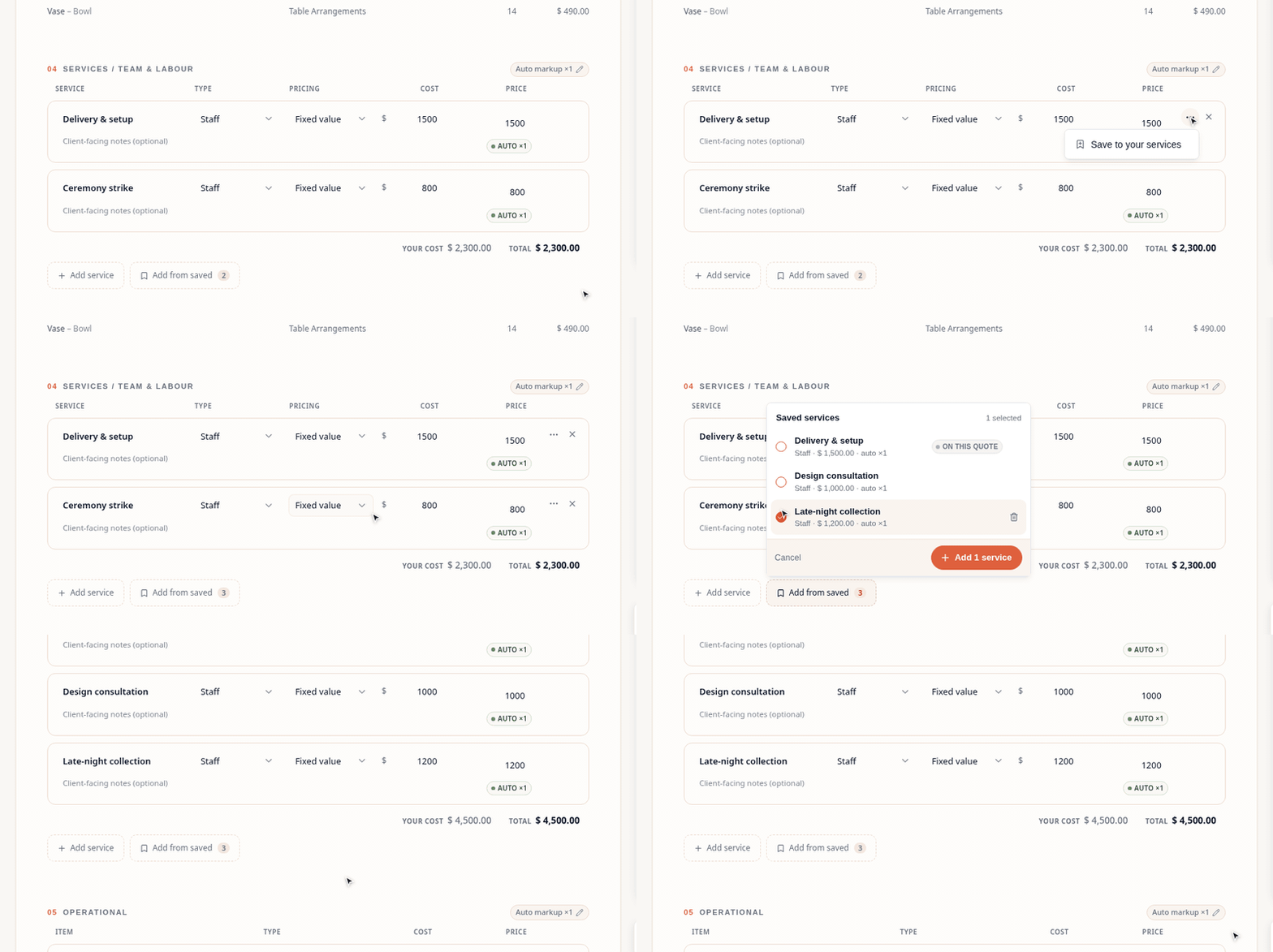
    A delivery row is saved to your services from its row menu, then two saved lines are ticked in Add from saved and land on the quote

    Delivery. Strike. A consultation fee. Hover a row on a quote, open its menu and choose Save to your services (costs work the same way). Next time, choose Add from saved, tick the ones you want, and they land with the prices you saved — change the amounts for that event and your saved list stays as it was.

    03Send your team their own link

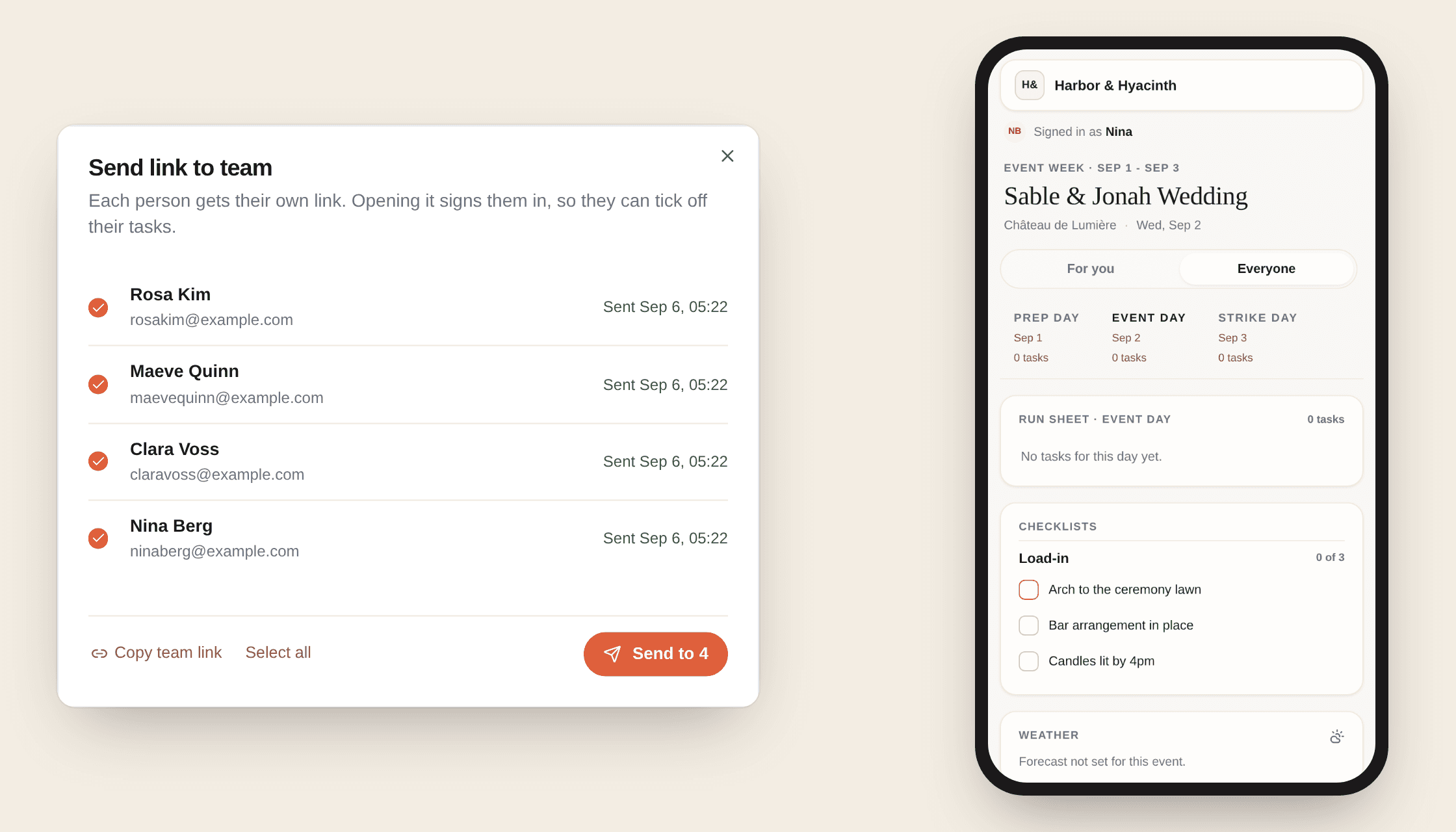
    The Send link to team dialog listing each team member with an email, and beside it a phone showing a teammate's week-of page with a checklist item ticked and their name against it

    The week-of plan used to have one link for everyone; now each person on the team gets their own. Open the Week-of view and choose Send link to team — opening the link signs them in, no password. Your checklists show on the link too, unless you switch a list to Private, and when someone ticks an item off, their name and the time sit next to it, on their phone and on your dashboard.

    04Two small things on the events board

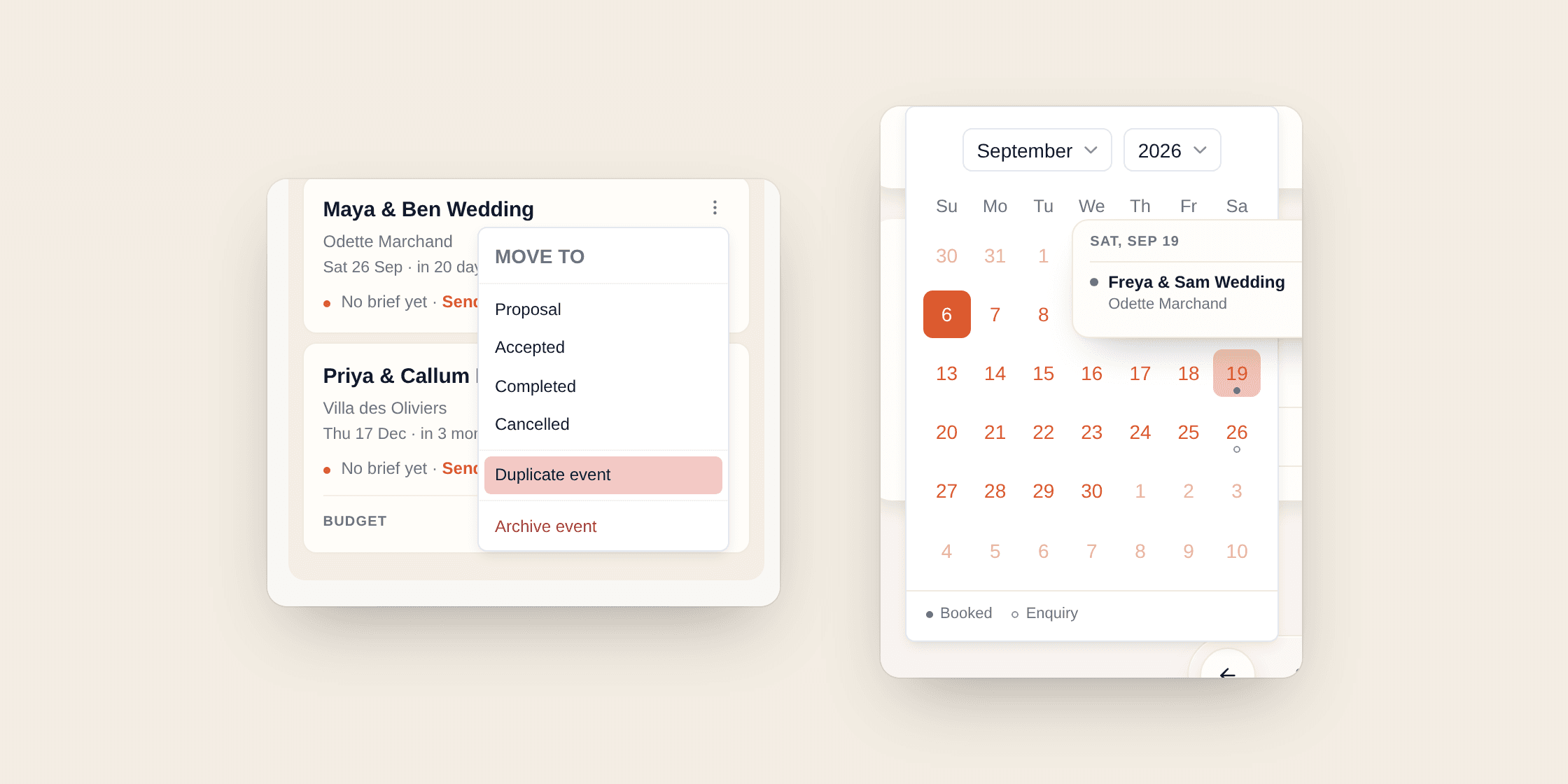
    An event card's menu open on Duplicate event, and the new-event date picker with dots on days that already hold an event, one hovered to show whose

    Duplicate an event from its card menu — it copies the client, date, venue, options, arrangements and images into a new lead with a fresh draft proposal (invoices and payments are never copied). And the new-event date picker now shows which days already hold an event: a solid dot is booked, a hollow dot is an enquiry.

    Also new

    • Recolour the text on your proposal document — text, muted and soft, each with its own colour — under Colors in the design editor.
    • Every arrangement row on the proposal board has a … menu: move it to another group, or make a new group right there.
    • Invoices have their own settings page — add your bank details once and they print on every invoice.
    • If your clients pay by card online, you can pass the card fee on to them, under Settings → Getting paid. Bank transfers never carry it.
    • Prices on the document use your currency symbol, and the tax row uses your own tax name — GST or VAT rather than Tax.
    • Canva pages come through sharper if you’re on a paid Canva plan.
    • The proposal board and the week-of plan update the moment you change something.
    • Signing in on a phone now emails you a link to open on your laptop or tablet — a BloomBoard app for your phone is in the works.
  3. From the studio · No. 003

    Bring your Canva designs in, and a new landscape template.

    Two big ones: you can bring your Canva designs into your proposals, and there’s a new landscape template called Golden Hour. The design editor got a rework too, and BloomBoard can now draft in your own words.

    01Your Canva designs, in your proposals

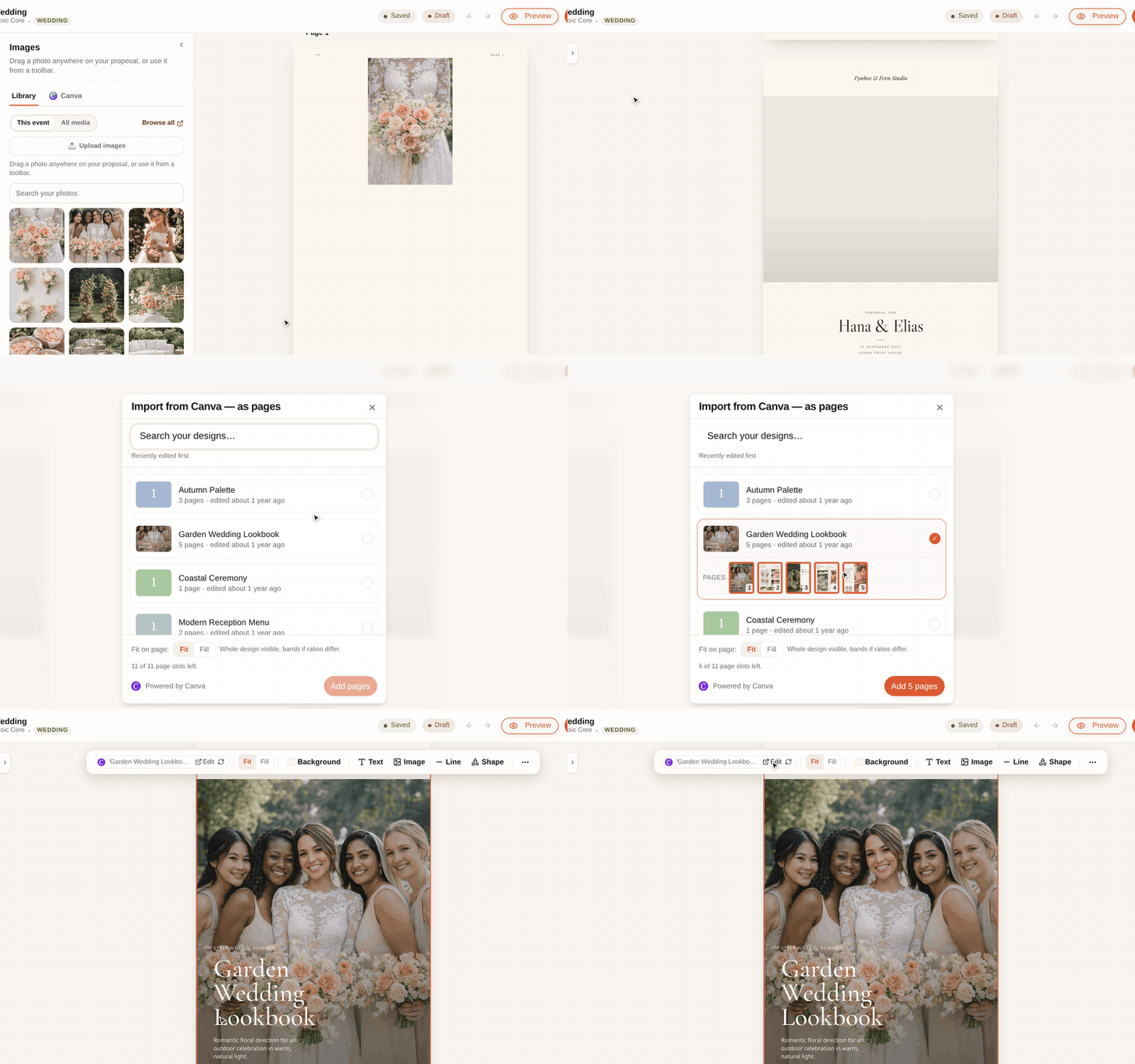
    The design editor's Images panel with a Canva tab, then Add page and Import from Canva: a wedding lookbook design is chosen with Fit selected, its five pages land in the proposal, and the synced Canva chip offers Edit

    Connect your account under Settings → Canva, then open the Images panel in the design editor — there’s a Canva tab next to your library. Pick a design, choose Fit or Fill, and it lands on a page. It stays linked: change the design in Canva and BloomBoard picks up the new version, with an Edit in Canva button if you want to jump across. On every plan.

    02Golden Hour, our first landscape templateStudio plan

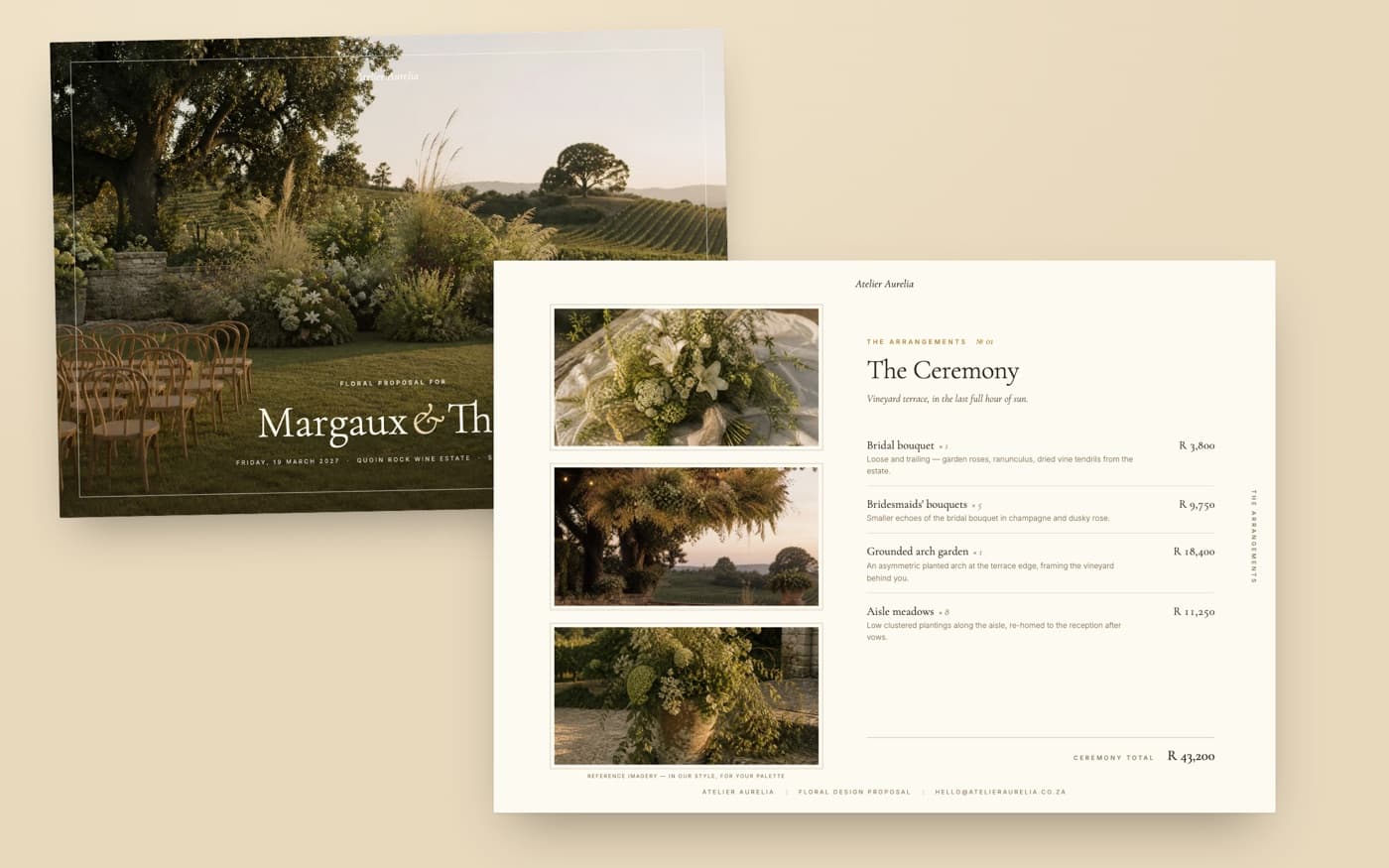
    Two landscape pages from a Golden Hour proposal: a full-bleed cover for Margaux and Theo, and The Ceremony spread with three mounted photos beside the arrangement list

    Some proposals want to be read like an open album. Golden Hour is landscape: a full-bleed cover, photos mounted in a fine frame, and your arrangements laid out in a two-column spread.

    03The design editor is easier to work in

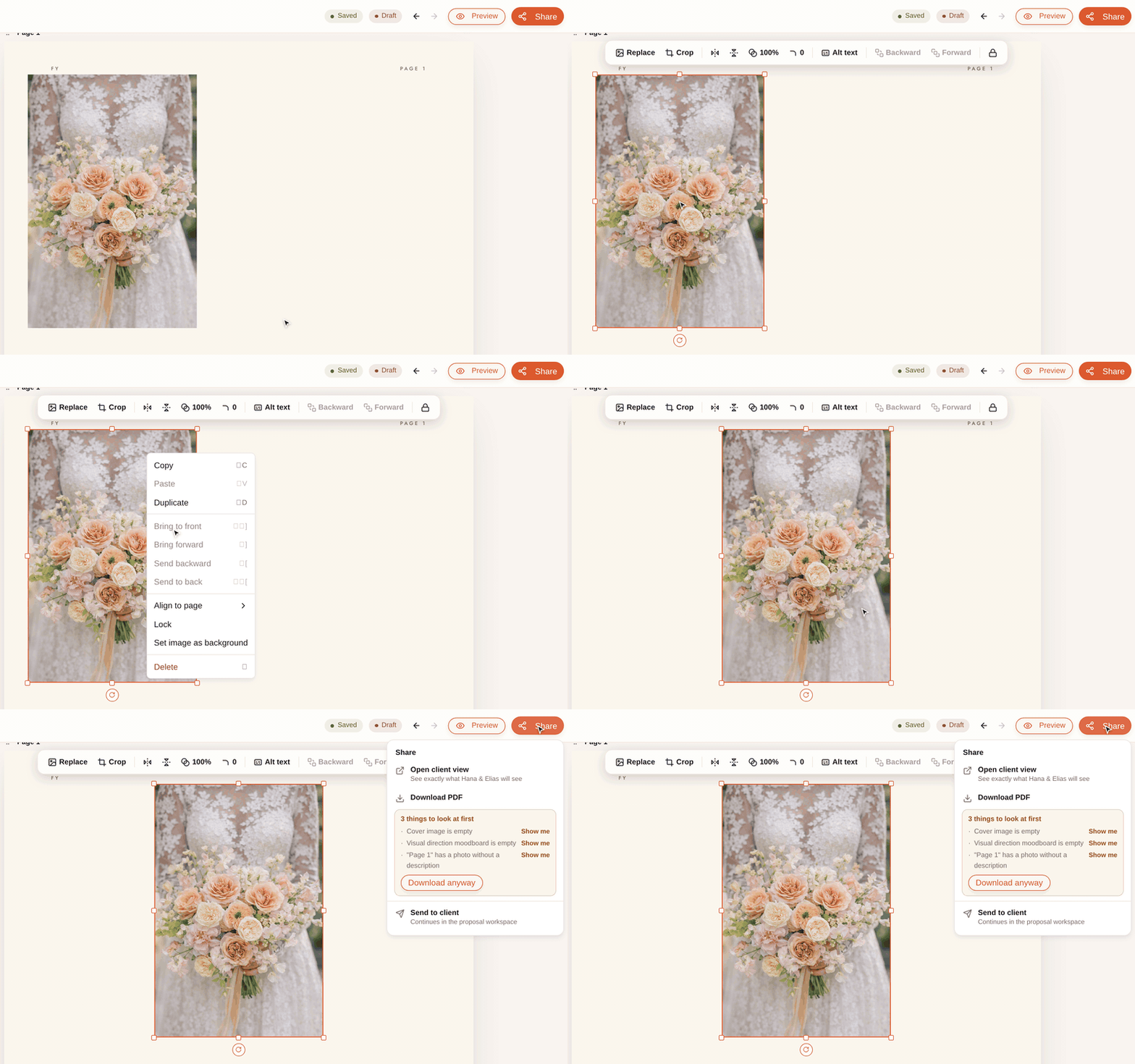
    Clicking a photo on a proposal page shows a single toolbar, the right-click menu's Align to page centres the photo, and the Share button lists three checks to look at before sending

    Click anything and one toolbar appears with what you can do to it; right-click for the rest; zoom and pan from the top bar. The Share button now runs the checks first. Your own pages can show the document header and footer, per page. And design presets no longer need an event — style a template over sample content under Library → Design presets and it’s ready the moment a real enquiry lands.

    04Drafts that sound like you

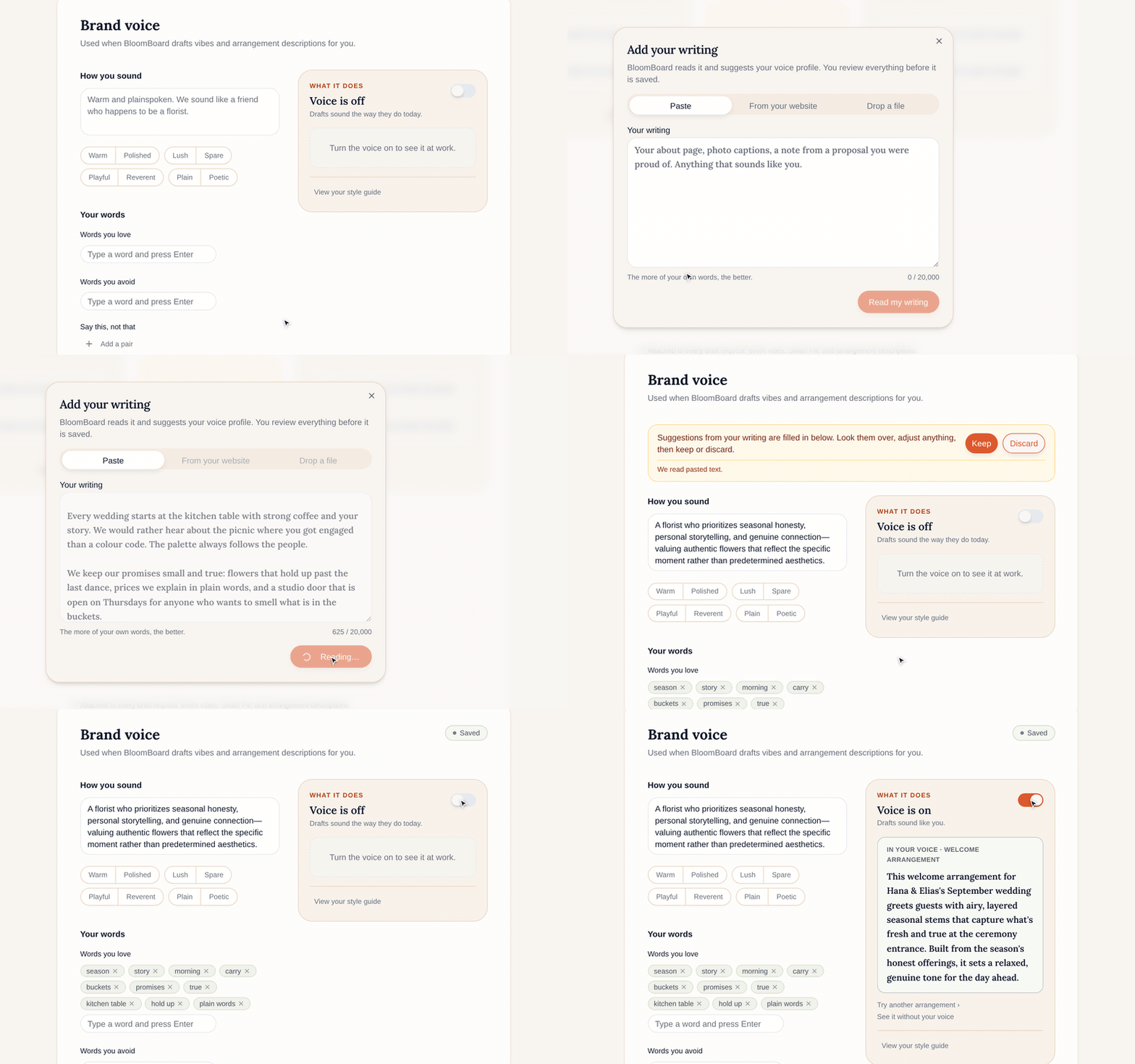
    In Settings, Brand voice reads a few pasted paragraphs and suggests how the studio sounds: a summary and the words it loves. Keep saves the suggestions, the voice switches on, and a sample arrangement description renders in that voice

    BloomBoard drafts event vibes and arrangement descriptions for you. Under Settings → Brand voice, give it some of your own writing — paste it, point it at your website, or upload a few files — and it suggests a style guide: your tone, the words you use and avoid. Keep what fits, and from then on drafts read like you wrote them.

    Also new

    • Prices now live with the event: change a flower’s cost on one recipe and every arrangement in that event follows — undo it, or keep the change to one arrangement. The cost summary shows markup and margin side by side.
    • Drag a photo from the Images panel straight onto a page — onto empty space to add it, onto a photo to swap it.
    • Your enquiry form can require a budget and a phone number, and set a minimum spend, under Settings → Client brief.
    • Export packs now include one order list across all your suppliers.
    • Arrangement templates are in the sidebar, under Library.
    • Recipe quantities can be fractions — 0.3 of a stem saves.
    • Copy a supplier’s order list as plain text and paste it into a message.
    • The default group “Bridal Retinue” is now called “Personal Flowers”.
  4. From the studio · No. 002

    Your brand on everything your clients see.

    Custom branding is here — the thing you’ve asked us for the most: your logo, your colours, and your own web address on everything your clients see. There’s also a new way to handle planner commissions.

    01Set your brand once, in one placeStudio plan

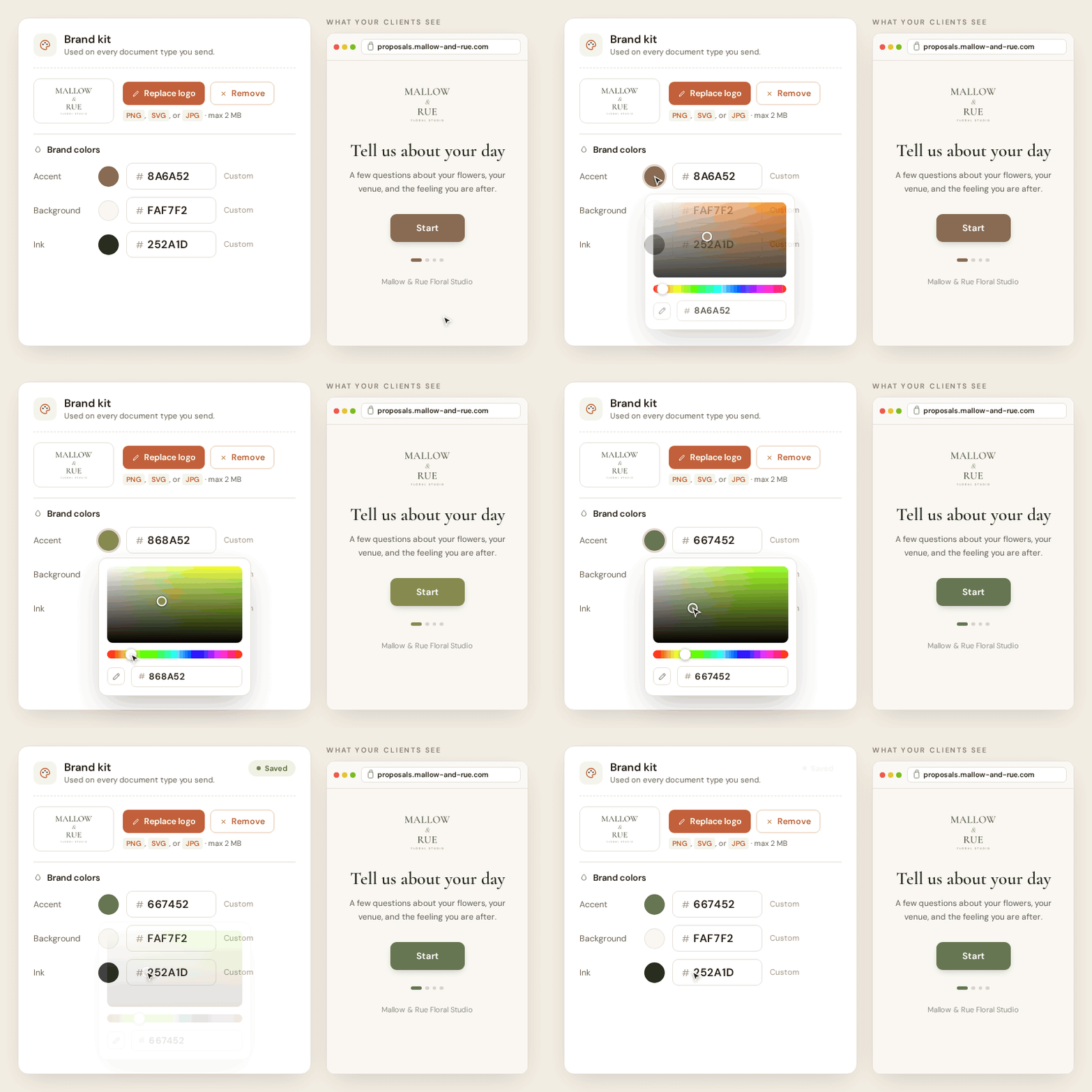
    Choosing a new accent colour from the colour picker in the brand kit, with the client brief preview beside it repainting as the colour changes

    Settings → Branding has your logo and three colours: accent for headings and buttons, background and ink for the canvas and the text your clients read. Pick from the swatches or paste a hex code, and watch the live preview of your proposal page, brief and emails repaint as you pick. If two colours would be hard to read together, BloomBoard suggests a better pair.

    02Everywhere your clients lookStudio plan

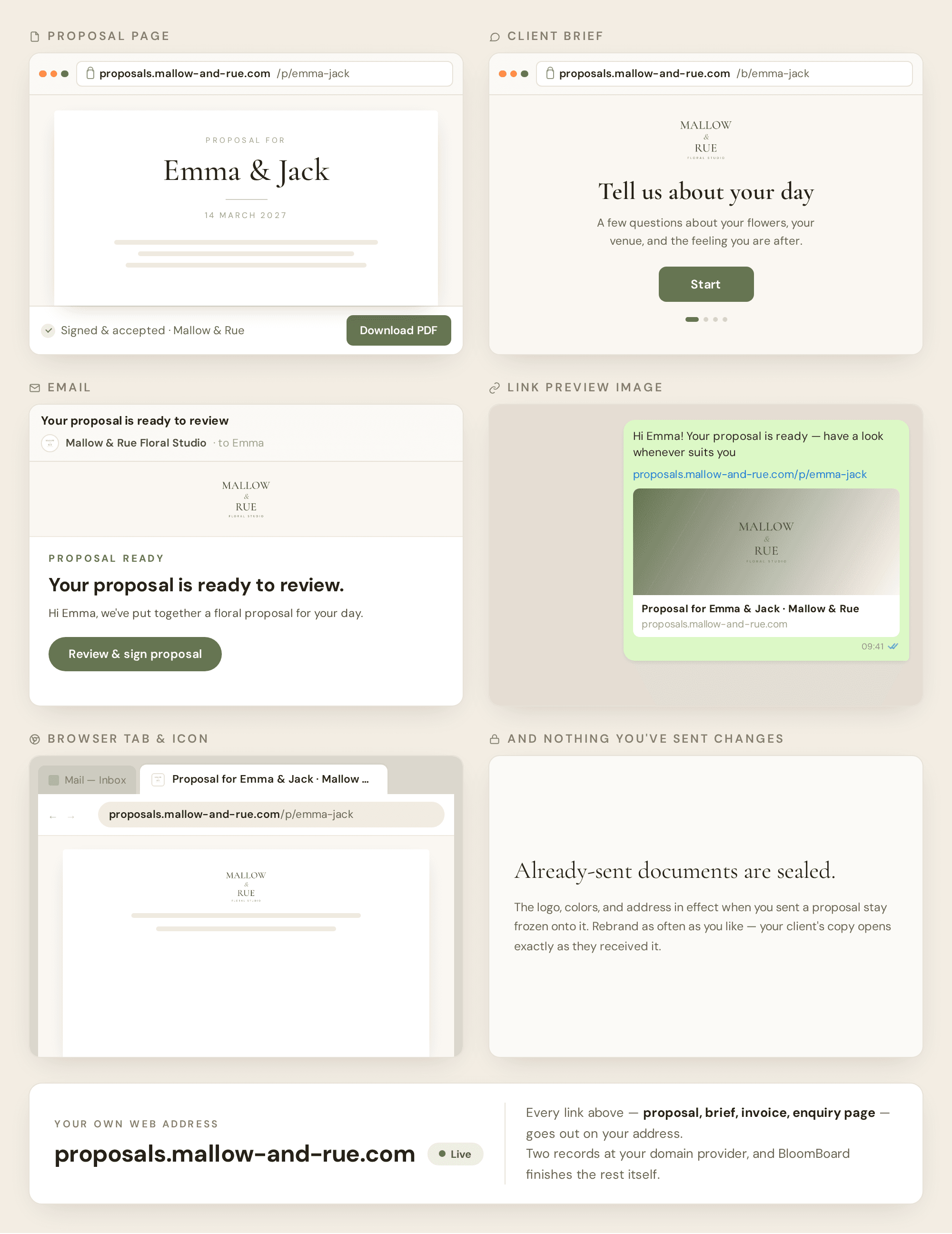
    The proposal page, client brief, email, chat link preview, and browser tab, each carrying the studio's logo, colours and web address

    One switch takes BloomBoard out of the picture. Proposal pages and client briefs show your logo and colours with no badge; emails come from your studio’s name with your logo and sign-off; link previews in WhatsApp and iMessage show your name and image; the browser tab shows your icon. Anything you’ve already sent stays exactly as your client received it.

    03Send links from your own web addressStudio plan

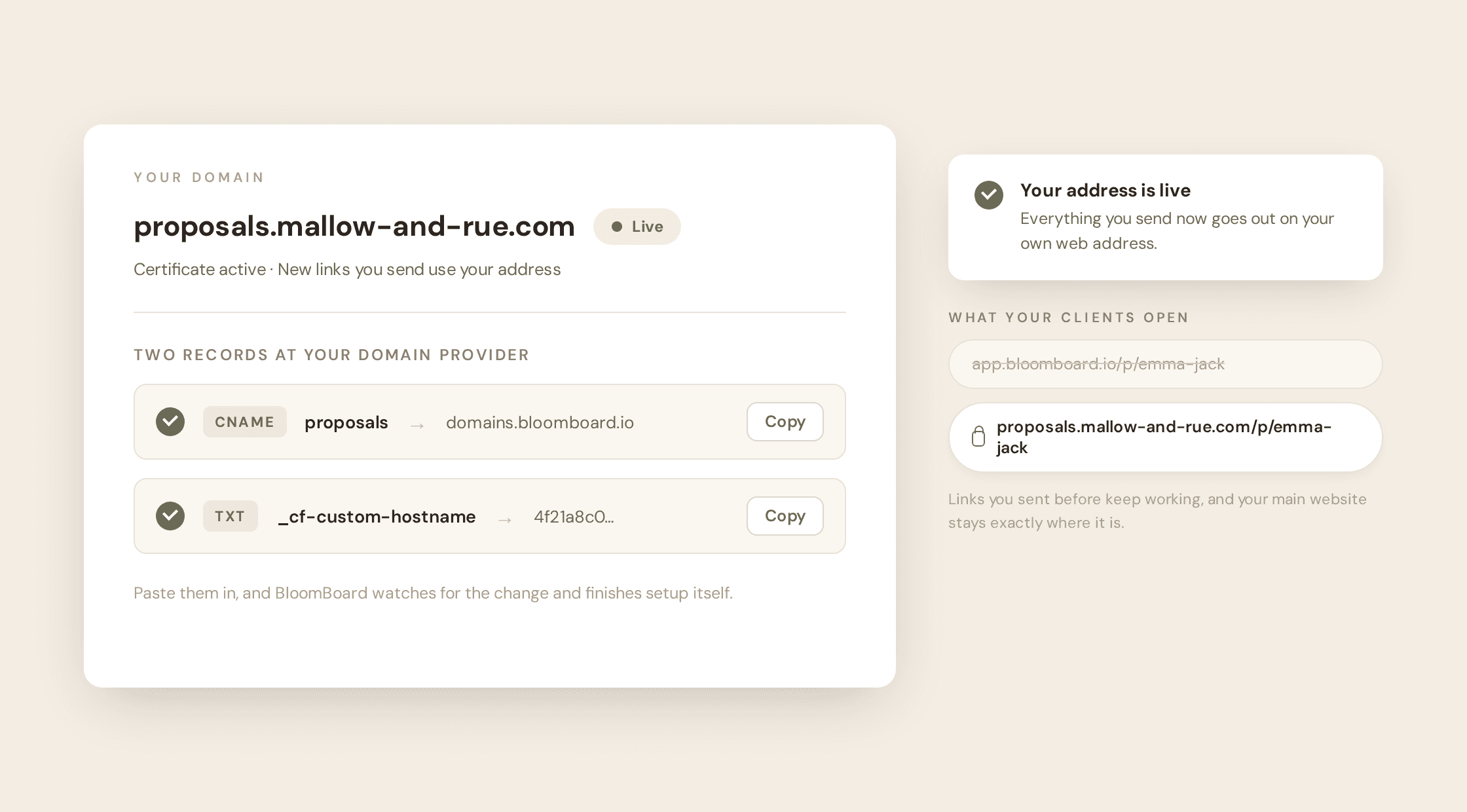
    The Your domain card showing proposals.mallow-and-rue.com live, with the two copy-paste records that set it up

    Connect a subdomain of a domain you already own — proposals.your-studio.com — and every link you send from then on is yours: proposals, briefs, invoices, your enquiry page. Setup is two records you copy and paste at your domain provider; BloomBoard picks them up and goes live on its own, usually within minutes.

    04Add a planner’s commission your client never sees

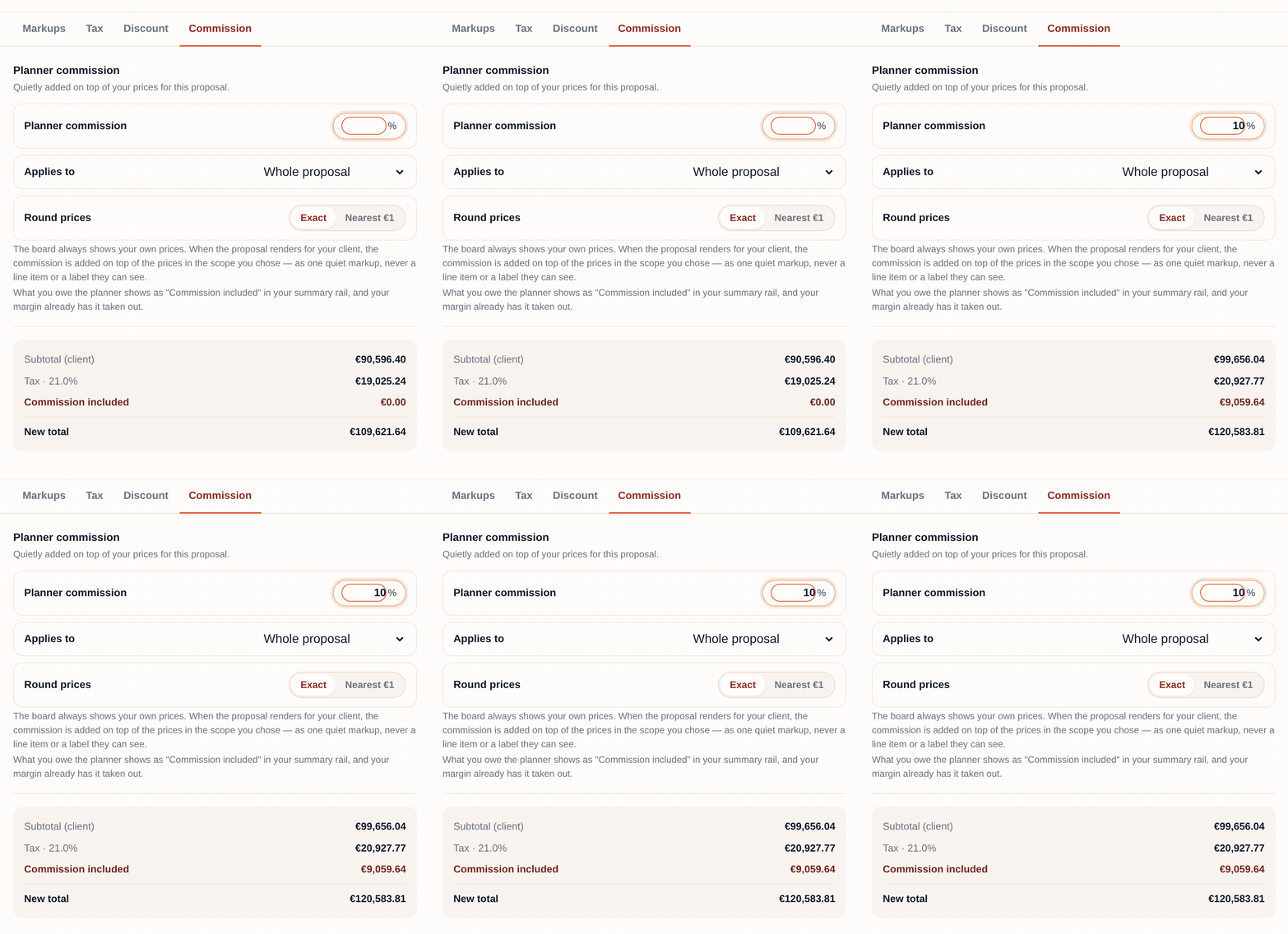
    Typing a 10 percent planner commission into the pricing rules, with the client subtotal and commission owed updating below

    If a wedding planner takes commission on your work, set the percentage once in your pricing rules and choose what it covers, from arrangements only up to the whole proposal. Your board still shows your own prices, the client’s proposal and PDF include the markup, and BloomBoard shows you what you owe the planner.

    Also new

    • Client briefs now ask for your client’s email first, so if they stop halfway you still have an address to reply to.
    • Reopening a brief no longer hides what was already sent — every submitted version stays one click away.
    • Download a sent or signed proposal’s PDF straight from the event menu.
    • Coordinators have a directory of their own, with every linked event one click away.
    • If you’re on Core, you can now upgrade to Studio inside BloomBoard, under Settings → Plan & billing.
  5. From the studio · No. 001

    Draw on your pages, and never miss an enquiry.

    A busy stretch in the studio: a proper toolset for your own proposal pages, pages anywhere in the proposal, alerts the moment an enquiry lands, and rentals that show exactly how they bill.

    01Design directly on your pages

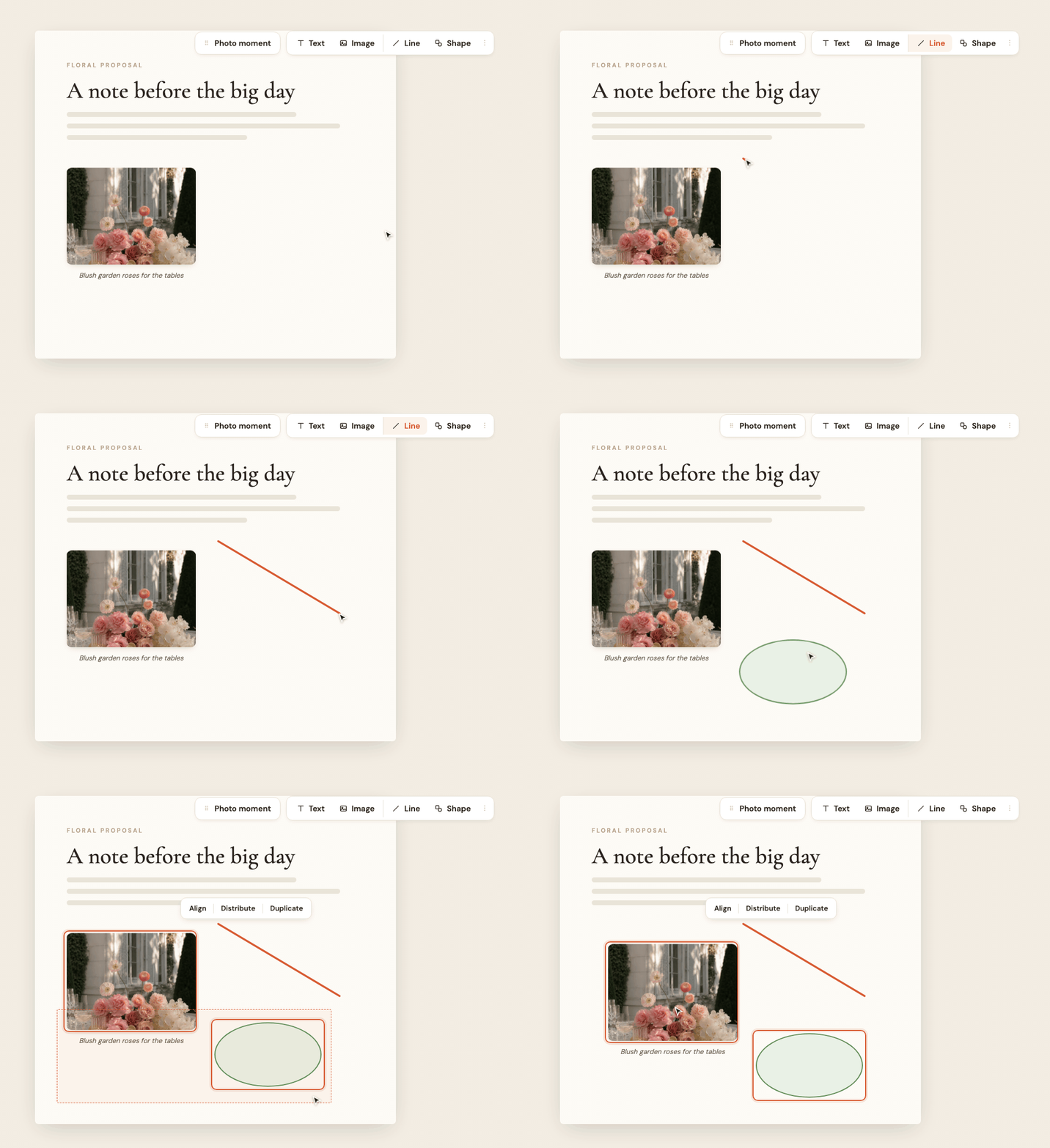
    Drawing an arrowed line and a shape on a proposal page, then moving both together

    Draw a line at any angle — colour, dashed or dotted, arrowheads — and drop in shapes that take their fill from your theme. Sweep up several pieces to align them or move them as one, and lock anything you’ve finished so a stray click can’t shift it.

    02Put a page anywhere in the proposal

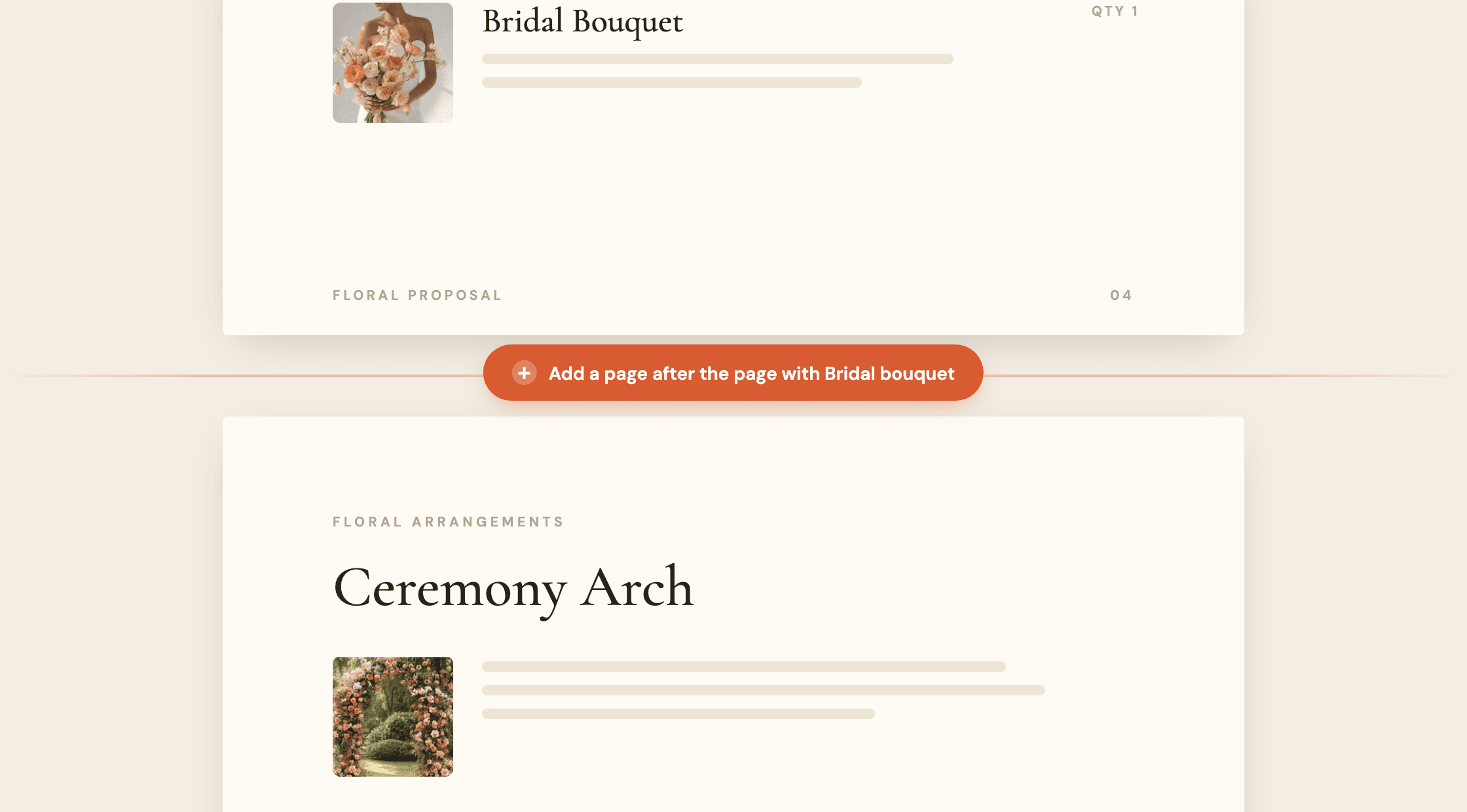
    The add page pill sitting in the gap between two proposal pages

    Your own pages can now sit between arrangement pages, not only at the start or end of a section. The add-page pill names the exact gap it will fill, and a page placed between arrangements stays with the arrangement it follows when you reorder.

    03Know the moment an enquiry lands

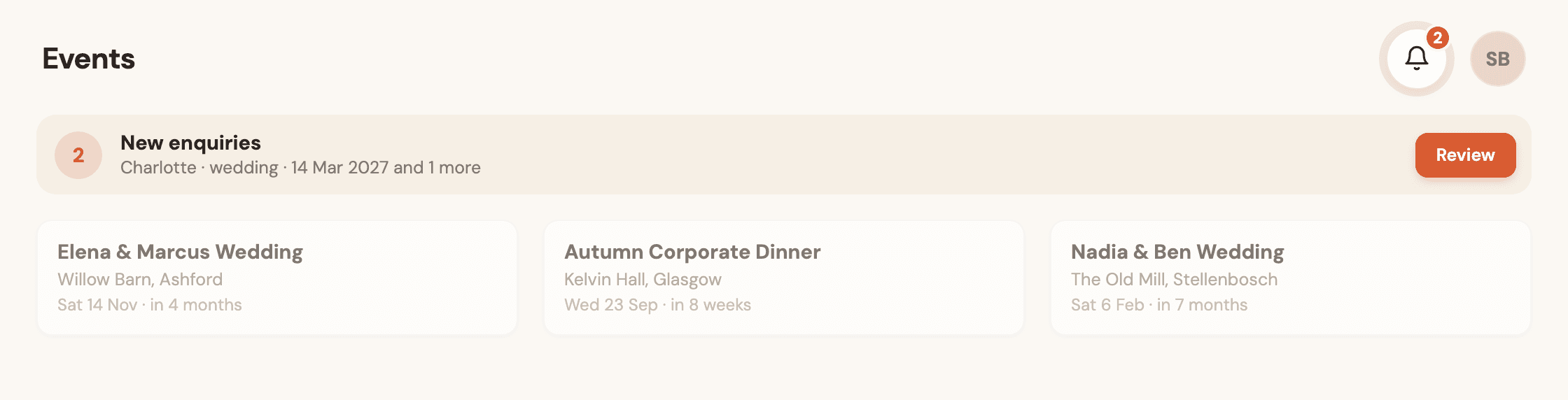
    The events board with a new enquiries strip and a notification bell showing two waiting

    A new enquiry from your public link rings the bell for everyone on your team, sends you an email, and raises a strip above your event cards. All three take you to the same review panel.

    04Rentals, in a recipe or on their own line

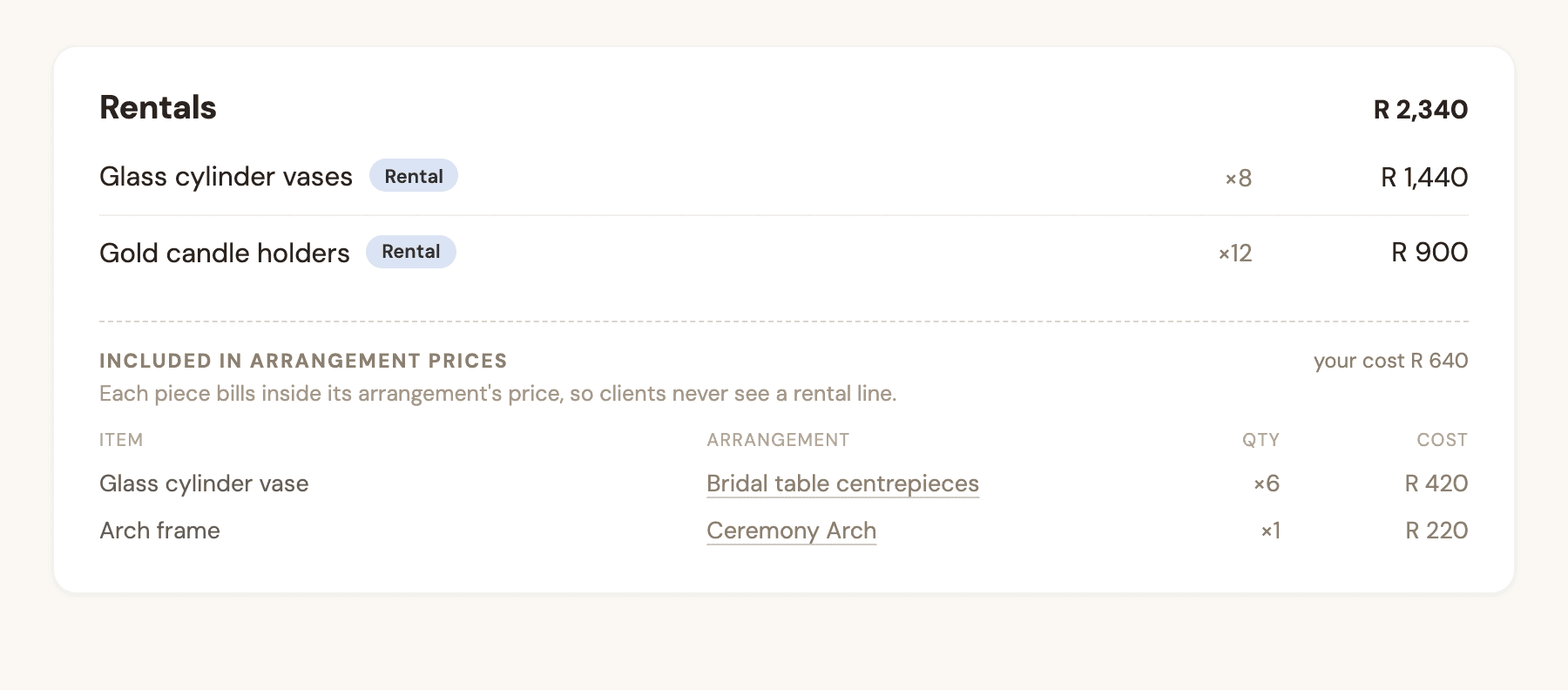
    The Rentals section showing rentals billed as their own lines, with a quieter strip for rentals included in arrangement prices

    A rental tucked into an arrangement’s recipe is priced into that arrangement at your rental markup, with a quiet note in the Rentals section so nothing hides. One added straight to the Rentals section bills as its own line on the proposal.

    Also new

    • Search the whole events board: client names, event names, venues and cities, coordinators and your notes — a small typo still finds the right event.
    • The cover page can be hidden, so you can open with a page of your own.
    • Export a complete copy of your workspace from Settings, any time.
    • Download the draft PDF straight from the preview tab.
    • Long proposals with many arrangements break across pages far more reliably.

See what’s new for yourself.

Start with one real client and one real event — every feature on for 14 days, online payments and the Canva integration included.

Start Free Trial

14 days free · No credit card